Recommendation Guide
Complete guide for AI-powered Kubernetes deployment recommendations with the DevOps AI Toolkit.
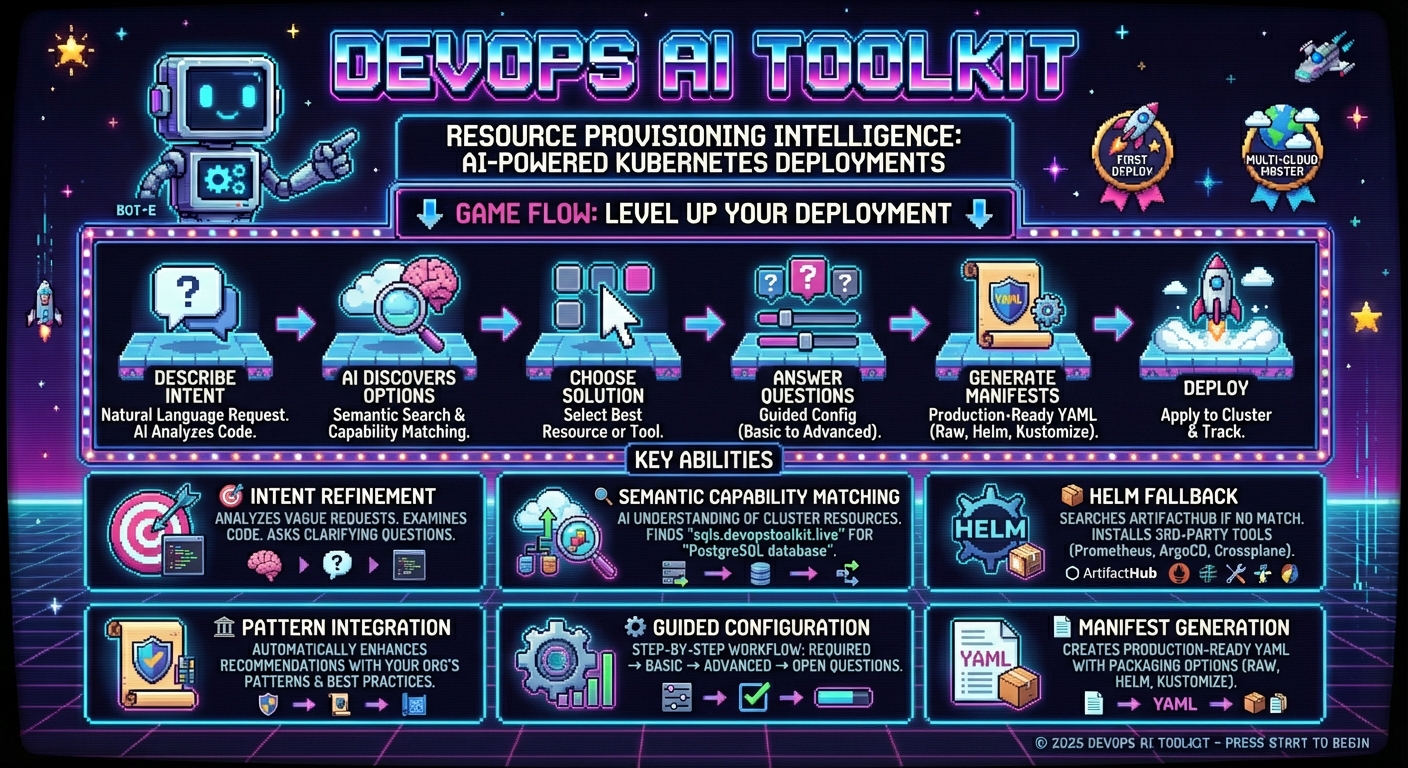
See It In Action
This video explains the platform engineering problem and demonstrates the Kubernetes deployment recommendation workflow from intent to running applications.
Note: The examples below use MCP, but this tool is also available via the CLI, Web Dashboard, and Headlamp Plugin.
Prerequisites
Before using this guide, complete the Deployment Guide to set up:
- DevOps AI Toolkit deployed
- AI model API key configured (see AI Model Configuration for supported models and setup)
KUBECONFIGpointing to your Kubernetes cluster (optional but recommended)
Required - Capability Management:
- Vector DB service (Qdrant) for capability storage
- Cluster capabilities discovered via Capability Management Guide
- Note: Recommendations will fail without capabilities - the system requires semantic understanding of your cluster resources
Optional - Enhanced with Organizational Patterns:
- Organizational patterns created via Pattern Management Guide
- When configured, recommendations automatically include organizational best practices
Overview
What it does: Provides AI-powered Kubernetes deployment recommendations using cluster capabilities, and installs third-party applications via Helm charts when no matching capability exists. Features semantic capability matching, organizational pattern integration, and guided workflow from intent clarification through deployment.
Use when: You need intelligent deployment recommendations that leverage your cluster's actual capabilities, or want to install third-party tools (Prometheus, Argo CD, Crossplane, etc.) via Helm charts with AI-guided configuration.
📖 Full Guide: This document covers the complete recommendation workflow with detailed examples and behind-the-scenes explanations.
Key Features
The DevOps AI Toolkit recommendation feature provides:
- Intent refinement guidance - When intent is vague, provides guidance for the client agent (Claude Code, Cursor, etc.) to analyze the project and gather details before proceeding
- Semantic capability understanding - Uses discovered resource capabilities for intelligent semantic matching
- AI-powered recommendations - Suggests optimal deployment approaches based on capability-filtered resources with rich context
- Enhanced resource discovery - Finds resources like
sqls.devopstoolkit.livefor "PostgreSQL database" requests through semantic search - Organizational pattern integration - Automatically enhances recommendations with your team's best practices and standards
- Guided configuration - Step-by-step configuration collection for your deployments
- Manifest generation - Creates ready-to-deploy Kubernetes YAML files
- Helm chart installation - Discovers and installs third-party applications via ArtifactHub when no cluster capability matches
- Automated deployment - Deploys and monitors your applications
How Capability-Enhanced Recommendations Work
Traditional Problem: AI sees sqls.devopstoolkit.live as a meaningless name among many cluster resources.
Capability Solution: AI understands that sqls.devopstoolkit.live provides PostgreSQL database capabilities with multi-cloud support.
Recommendation Flow:
- User Intent: "I need a PostgreSQL database"
- Capability Search: Semantic search finds relevant resources with capability context
- Pre-filtered Results: AI gets semantically relevant resources instead of all generic resource names
- Enhanced Recommendations: Optimal matches like
sqls.devopstoolkit.liveappear as top suggestions
Helm Fallback: When no cluster capability matches (e.g., "Install Prometheus" but no Prometheus operator installed), the system automatically searches ArtifactHub for Helm charts and presents installation options.
Complete Workflow Examples
Example 1: Stateless Golang Web Application
User: I want to deploy my app
Agent: [Uses mcp__dot-ai__recommend with intent "deploy my app"]

The intent needs more detail. Let me analyze your project to understand what you're deploying.

[Agent analyzes the project directory, reads package.json, Dockerfile, source code, etc.]

Based on my analysis of your project:
- **Language**: Go (found go.mod, main.go)
- **Type**: Web application (HTTP server on port 8080)
- **Dependencies**: Connects to PostgreSQL database (found database connection code)
- **Container**: Ready to containerize (Dockerfile present)

Is this for production or development? And should the app be publicly accessible?
User: It's for production, needs external access, expects moderate traffic with occasional spikes.
Agent: Perfect! Based on my analysis and your requirements, let me get production-focused deployment recommendations.

[Uses mcp__dot-ai__recommend with refined intent "deploy stateless Golang web application for production with external access via ingress, moderate traffic with occasional spikes requiring autoscaling, connects to PostgreSQL database, container image available" and final: true]

I found 5 deployment solutions for your Golang web application. All include:
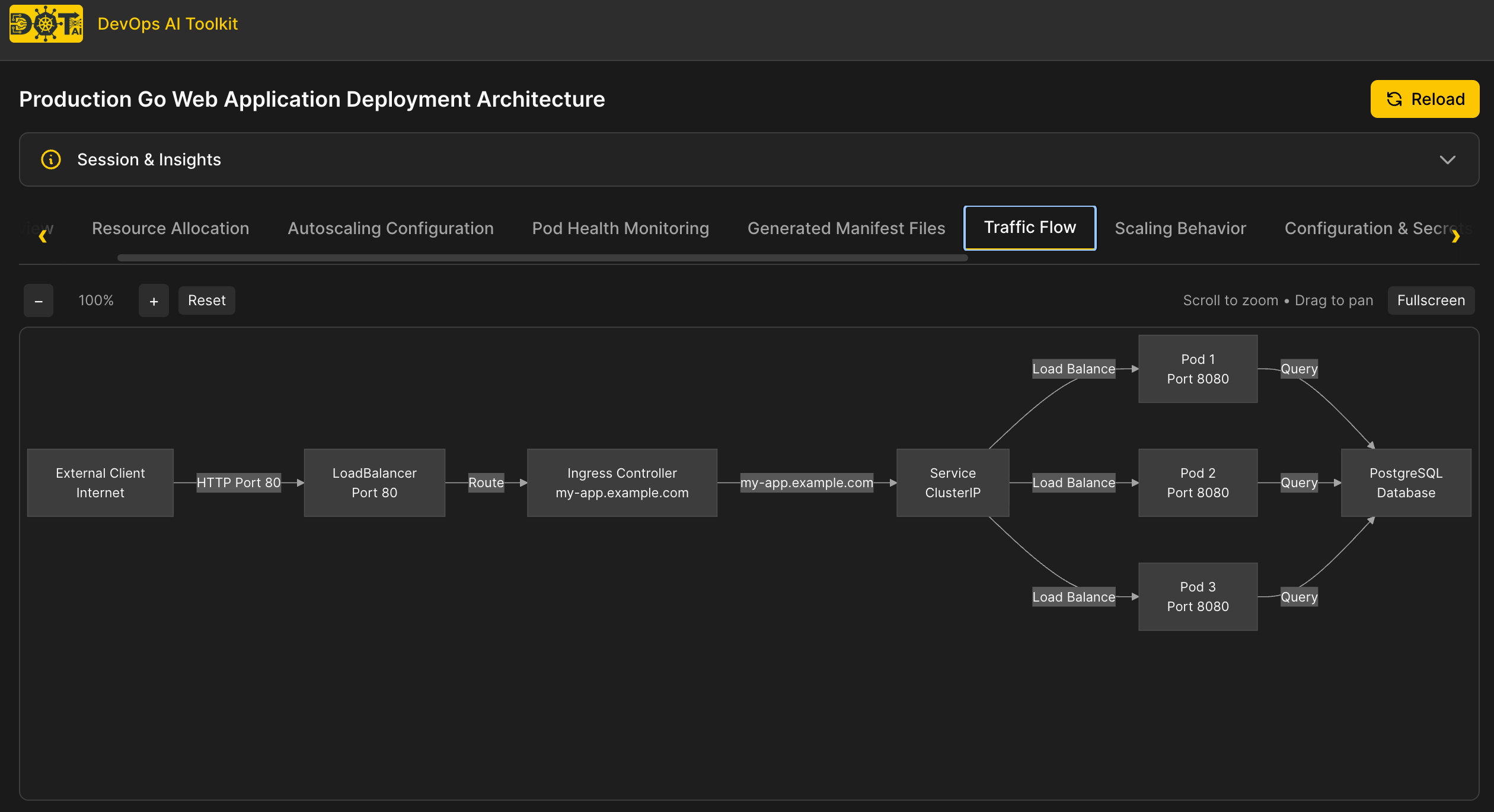
- Deployment - manages your stateless app with rolling updates
- Service - internal load balancing and service discovery
- Ingress - external HTTP/HTTPS access
- HorizontalPodAutoscaler - handles traffic spikes

The difference is how PostgreSQL is provisioned:

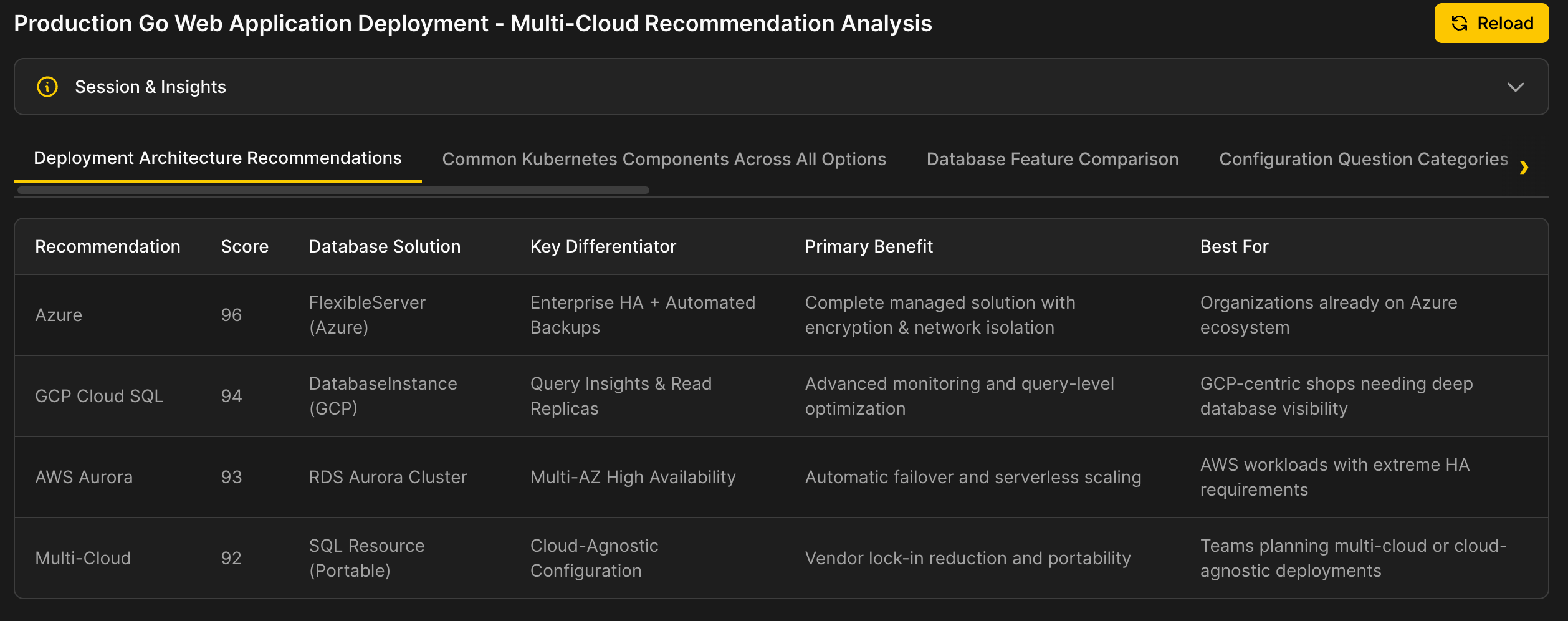
| #   | Solution                  | Database Approach                                  | Score |
|-----|---------------------------|----------------------------------------------------|-------|
| 1   | Multi-cloud (Recommended) | DevOps Toolkit SQL - portable across AWS/GCP/Azure | 96    |
| 2   | Azure-native              | Azure Flexible Server + ResourceGroup              | 92    |
| 3   | AWS-native                | RDS DBInstance                                     | 90    |
| 4   | GCP-native                | Cloud SQL DatabaseInstance + Database              | 88    |
| 5   | UpCloud                   | ManagedDatabasePostgreSQL                          | 85    |

Organizational Context:
- Solutions 1 & 2 follow your organization's patterns (DevOps Toolkit DB pattern, Azure ResourceGroup pattern)
- Policy enforced: Applications must never use the latest image tag
- Database regions are standardized (us-east-1 for AWS, us-east1 for GCP, eastus for Azure)

📊 **View visualization**: http://localhost:3000/v/sol-...

Which solution would you like to proceed with? (1-5)
What happened behind the scenes:
- First call with vague intent ("deploy my app" - under 100 characters) triggered intent refinement guidance
- Agent received guidance to analyze the project and gather details before proceeding
- Agent used its local tools (file reading, code analysis) to discover: Go language, web app type, PostgreSQL dependency, Dockerfile
- Agent discussed findings with user and gathered missing context (production, external access, traffic pattern)
- Second call with detailed intent +
final: trueproceeded to recommendations - Capability search found relevant resources: Deployment, Service, Ingress, HorizontalPodAutoscaler, plus database operators
- Vector DB search found matching organizational patterns: DevOps Toolkit DB pattern, Azure ResourceGroup pattern
- Generated 5 solution alternatives with different cloud provider options, scoring based on capability relevance and pattern alignment
- Policy intents automatically enforced (e.g., no
latestimage tags, standardized regions) - Visualization URL generated for exploring solutions in Web UI (shows resources, patterns, and configuration details)
Visualization (Optional)
The visualization URL opens an interactive view in the Web UI showing all solution options with their resources, patterns, and scoring:
Note: Visualization URLs require additional setup:
- Configure
webUI.baseUrlin your Helm values (see Deployment Guide - Web UI Visualization)- Install the Web UI (see Web UI Documentation)
Note: Requires capability scanning via Capability Management Guide and optionally organizational patterns via Pattern Management. Policy requirements shown require active policy intents created via Policy Management Guide.
User: I'll go with option 1
Agent: Excellent choice! Let me get the configuration requirements.

[Uses mcp__dot-ai__recommend with stage: 'chooseSolution', solutionId: 'sol-1765409923079-fa3f055c']

I need some required configuration details:

**Application:**
- Name - What should the app be called? (e.g., my-golang-app)
- Namespace - Where to deploy? Options: a-team, b-team, default, dot-ai
- Container image - Full image URI with version tag (e.g., myregistry.io/app:v1.0.0) - latest tag is not allowed per policy
- Port - What port does your app listen on? (default: 8080)
- Ingress hostname - Public DNS name (e.g., myapp.example.com)

**Database:**
- Cloud provider - aws, azure, or gcp?
- Size - small, medium, or large?
- PostgreSQL version - e.g., 15, 14.8

**Output:**
- Format - raw YAML, helm chart, or kustomize?
- Output path - Where to save files? (e.g., ./manifests)

You can answer all at once or just the ones you want to customize (I'll use sensible defaults for the rest).
What happened behind the scenes:
- recommend tool with stage 'chooseSolution' loaded the selected solution and returned only the required stage questions
- Questions generated from resource schema analysis: Deployment needs name/image/port, Ingress needs hostname, database needs provider/size/version
- Policy intents enforced: "latest" image tag not allowed (flagged in question)
- New packaging questions added:
outputFormat(raw/helm/kustomize) andoutputPathfor GitOps-ready output - System categorizes questions as required (must answer) to proceed
User: my-app, a-team namespace, ghcr.io/vfarcic/silly-demo:v1.5.223, port 8080, silly-demo.acme.com for ingress. AWS provider, small database, PostgreSQL 15. Output as Kustomize to ./manifests.
Agent: Perfect! Let me configure the required settings.

[Uses mcp__dot-ai__recommend with stage: 'answerQuestion:required', solutionId, answers: {name: "my-app", namespace: "a-team", container-image: "ghcr.io/vfarcic/silly-demo:v1.5.223", application-port: 8080, ingress-host: "silly-demo.acme.com", database-cloud-provider: "aws", database-size: "small", database-version: "15.0", outputFormat: "kustomize", outputPath: "./manifests"}]

Required configuration saved. Now for basic settings (all optional - I can use defaults):

**Scaling:**
- Initial replicas: 2
- Min replicas (HPA): 2
- Max replicas (HPA): 10

**Resources per pod:**
- CPU: 250m request / 500m limit
- Memory: 256Mi request / 512Mi limit

**Networking:**
- Ingress class: nginx
- Enable TLS/HTTPS: yes

**Database:**
- Database name: appdb

Would you like to customize any of these, or should I proceed with these defaults? (say "skip" to use defaults)
What happened behind the scenes:
- recommend tool with stage 'answerQuestion:required' processed required stage answers and updated solution file
- Validated all required fields were provided (name, namespace, image, port, ingress host, database config)
- Captured output format (Kustomize) and path (./manifests) for later manifest generation
- Determined next stage is 'basic' and returned basic configuration questions with sensible defaults
- Questions are optional at this stage - user can answer, customize specific values, or skip to use defaults
User: 2 replicas, DB name: mydb
Agent: Basic settings saved. Now for advanced configuration (all optional):

[Uses mcp__dot-ai__recommend with stage: 'answerQuestion:basic', solutionId, answers: {replicas: 2, hpa-min-replicas: 2, hpa-max-replicas: 10, cpu-request: "250m", cpu-limit: "500m", memory-request: "256Mi", memory-limit: "512Mi", ingress-class: "nginx", database-name: "mydb", enable-tls: true}]

**Deployment Strategy:**
- RollingUpdate with max surge 1, max unavailable 0 (zero-downtime)

**Health Probes:**
- Readiness: /health, 10s initial delay, 10s period
- Liveness: /health, 30s initial delay, 15s period

**Autoscaling:**
- Target CPU: 75%
- Target memory: 75%

**Resilience:**
- PodDisruptionBudget: min 1 available
- Termination grace period: 30s
- Pod anti-affinity: spread across nodes

**Security:**
- Run as non-root: yes
- Read-only filesystem: no
- TLS secret name: app-tls-cert

**Database:**
- Backups enabled: yes

Would you like to customize any of these, or say "skip" to use defaults?
What happened behind the scenes:
- recommend tool with stage 'answerQuestion:basic' processed basic stage answers (replicas: 2, database-name: mydb, plus defaults)
- Updated solution file and determined next stage is 'advanced'
- Returned advanced configuration questions focused on deployment strategy, health probes, autoscaling, resilience, and security
User: Skip advanced configuration
Agent: No problem! Moving to the final configuration stage.

[Uses mcp__dot-ai__recommend with stage: 'answerQuestion:advanced', solutionId, answers: {}]

Any additional requirements or constraints for your deployment?
What happened behind the scenes:
- recommend tool with stage 'answerQuestion:advanced' processed empty advanced stage answers (using defaults for all)
- Determined next stage is 'open' and returned the open-ended question
User: N/A
Agent: Perfect! Configuration complete.

[Uses mcp__dot-ai__recommend with stage: 'answerQuestion:open', solutionId, answers: {open: "N/A"}]

Configuration complete. Ready to generate deployment manifests.
What happened behind the scenes:
- recommend tool with stage 'answerQuestion:open' processed open stage with "N/A" (no additional requirements)
- All configuration stages now complete (required ✓, basic ✓, advanced defaults, open ✓)
- Returned status: 'ready_for_manifest_generation', nextAction: 'generateManifests'
User: Generate the manifests
Agent: Configuration complete. Generating your Kustomize manifests...

[Uses mcp__dot-ai__recommend with stage: 'generateManifests', solutionId]

Your Kustomize manifests are ready at ./manifests/:

manifests/
├── kustomization.yaml              # Points to overlays/production
├── README.md
├── overlays/
│   └── production/
│       └── kustomization.yaml      # ← Edit this file to customize
└── base/
    ├── kustomization.yaml
    ├── namespace.yaml
    ├── deployment.yaml             # Image without tag (tag set in overlay)
    ├── service.yaml
    ├── ingress.yaml
    ├── hpa.yaml
    ├── pdb.yaml
    ├── sql.yaml
    └── secret.yaml

**What's included:**
- **Deployment** - 2 replicas, rolling updates, pod anti-affinity, non-root security
- **Service** - ClusterIP on port 80
- **Ingress** - silly-demo.acme.com with TLS via cert-manager
- **HPA** - scales 2-10 replicas based on CPU/memory (75% threshold)
- **PDB** - ensures at least 1 pod available during disruptions
- **SQL** - AWS PostgreSQL 15 (small) via DevOps Toolkit pattern
- **Secret** - database credentials (placeholder - will be populated by Crossplane)

**To customize:**
Edit `overlays/production/kustomization.yaml`:
- `image:` section to change image tag (for upgrades)
- `patches:` for other customizations

Deploy with:
kubectl apply -k ./manifests

📊 **View visualization**: http://localhost:3000/v/sol-...

Would you like me to deploy this to your cluster now?
What happened behind the scenes:
- recommend tool with stage 'generateManifests' loaded the fully configured solution file
- AI generated Kustomize structure based on
outputFormat: kustomizeselection - Raw manifests generated first, validated via
kubectl kustomize | kubectl apply --dry-run=server - AI packaged validated manifests into Kustomize structure:
base/contains generic manifests (image without tag)overlays/production/kustomization.yamlsets image tag and customizations
- Response includes
filesarray withrelativePathandcontentfor each file - Agent writes files to user's chosen
outputPath(./manifests) - Each resource includes dot-ai.io/ labels for tracking
- README.md generated with deployment instructions and overlay examples
- Visualization URL generated for exploring deployment configuration in Web UI
Visualization (Optional)
The visualization URL opens an interactive view with multiple tabs including resource allocation, autoscaling configuration, health monitoring, generated manifests, traffic flow, and more:
User: Yes, deploy it!
Agent: Deploying your application...

[Uses mcp__dot-ai__recommend with stage: 'deployManifests', solutionId]

🎉 **Deployed successfully!** All resources were created:

- namespace/a-team configured
- deployment.apps/my-app created
- service/my-app created
- ingress.networking.k8s.io/my-app created
- horizontalpodautoscaler.autoscaling/my-app created
- poddisruptionbudget.policy/my-app created
- sql.devopstoolkit.live/my-app-db created
- secret/my-app-db-credentials created

**Next steps:**
1. Wait for the SQL resource to provision the AWS RDS PostgreSQL instance (may take 5-10 minutes)
2. Once RDS is ready, Crossplane will populate the actual database credentials
3. The app will become healthy once it can connect to the database
4. Access your app at https://silly-demo.acme.com (ensure DNS points to your ingress controller)

**Verify status:**
kubectl get all -n a-team
kubectl get sql -n a-team
kubectl get ingress -n a-team
What happened behind the scenes:
- recommend tool with stage 'deployManifests' applied Kustomize manifests using
kubectl apply -k - Created all resources: Namespace, Deployment, Service, Ingress, HPA, PDB, SQL (database), Secret
- SQL resource triggers Crossplane to provision AWS RDS PostgreSQL instance
- Provided next steps and verification commands
Option: GitOps Deployment
After generateManifests, agents present three equal options: save locally (write files from the response), deploy to cluster (deployManifests stage), or push to Git (pushToGit stage). For GitOps workflows with Argo CD or Flux, use pushToGit.
pushToGit has two modes. By default it commits straight to branch. With pullRequest: true it commits to a server-generated branch and opens a pull request against branch instead — see Option: GitOps Pull Request below. When RBAC is enabled, the two modes require different permissions: pushing directly needs apply on recommend, opening a pull request needs only execute, and agents are only offered the mode the user is permitted to use.
repoUrl must be an HTTPS URL naming an allowlisted host. Because the server attaches its own Git credential to whatever repository URL the call supplies, that URL is checked in both modes, before anything is cloned, committed, or pushed: its host must appear in the gitops.allowedRepoHosts Helm value — which defaults to github.com and www.github.com — and its scheme must be https://. A host that is not listed is refused and names itself:
Repository host "gitlab.example.com" is not allowed. Currently allowed: github.com,
www.github.com. To allow it, add the host to the "gitops.allowedRepoHosts" Helm
value (default: github.com, www.github.com) and restart the server.
The fix is an operator change, not a client one: add the host to the value. Matching is on the parsed hostname — exact and case-insensitive, with no wildcards, so github.com does not cover github.company.example, nor does any entry cover a subdomain of itself. That is why the default lists github.com and www.github.com as two separate entries rather than one standing in for the other. A wrong scheme is a client fix instead, and reports itself as such rather than blaming the allowlist:
Repository URL scheme "ssh://" is not allowed. Use an https:// URL: it is the only
scheme that can carry the server's git credential safely — http sends it in
cleartext, and ssh/git URLs would pass it as an SSH username.
See GitOps Repository Host Allowlist for the full rules, and note that allowlisting a non-GitHub host does not enable automatic pull request creation there — pullRequest: true against it still reports pushed_without_pr.
Direct push:
User: Push to GitOps repo instead
Agent: Pushing manifests to your GitOps repository...

[Uses mcp__dot-ai__recommend with stage: 'pushToGit', solutionId, repoUrl: 'https://github.com/org/gitops-repo.git', targetPath: 'apps/my-app/']

✅ **Pushed successfully!** Manifests are now in your GitOps repository:

**Repository**: https://github.com/org/gitops-repo.git
**Branch**: main
**Path**: apps/my-app/
**Commit**: abc123def456

**Files pushed:**
- deployment.yaml (2.1 KB, 85 lines)
- service.yaml (0.3 KB, 15 lines)
- ingress.yaml (0.5 KB, 22 lines)
- hpa.yaml (0.4 KB, 18 lines)
- pdb.yaml (0.3 KB, 14 lines)

🚀 **GitOps Sync**: Your GitOps controller (Argo CD/Flux) will sync these changes automatically.

**Next steps:**
1. Argo CD/Flux will detect the new manifests and sync automatically
2. Monitor the sync status in your GitOps dashboard
3. Once synced, resources will be created in the a-team namespace

**Verify in GitOps dashboard:**
- Argo CD: https://argocd.example.com/applications/my-app
- Flux: kubectl get kustomization -n flux-system
What happened behind the scenes:
- recommend tool with stage 'pushToGit' cloned the GitOps repository
- Generated manifests were written to the specified target path
- Changes committed with message "Add my-app manifests"
- Commit authored by the authenticated user (see Commit and pull request attribution)
- Pushed to the specified branch (default: main)
- Session updated with gitPush state for tracking
- GitOps controller will sync automatically based on its configuration
Note: If the manifests already match the branch, nothing is committed and nothing is pushed. The response then reports status: "no_changes", omits gitPush.commitSha, returns an empty gitPush.filesPushed, and sets gitopsMessage to No changes to push: the manifests already match branch main. Re-running the stage is therefore safe — it never produces an empty commit.
Note: GitOps push is currently supported for raw YAML manifests and Kustomize only. Helm chart support (generating Argo CD Application or Flux HelmRelease CRs) is planned for a future release. For Helm charts, use the deployManifests stage to install directly to the cluster.
Note: targetPath must stay inside the repository, and symbolic links are refused — both a targetPath that traverses a symlink committed in the GitOps repository and a manifest path that is one. This only affects repositories that deliberately symlink a manifest path. Depending on which case it is, the error reads Path traversal detected: "<path>" attempts to write outside repository directory or Refusing to write "<path>": it is a symbolic link, which could redirect the write outside repository directory. The two are caught at different moments: containment is validated across the whole batch before anything is written, so it writes no files at all, while the symlink is caught at the write itself, so in a multi-file push the files ahead of the offending one are already in the clone. Either way nothing is committed and nothing is pushed — the clone is a throwaway, so your repository is untouched. Point targetPath at a real directory in the repository instead.
Note: git's own control directory is not writable either. A targetPath that resolves into .git — directly, or through a symlink committed in the repository that points there — is refused with Refusing to write "<path>": paths inside the git directory (.git) are not writable, and the whole batch is validated before anything is written, so a refusal writes no files at all. Ordinary paths that merely start with the same letters, such as .github/workflows/, are unaffected.
Option: GitOps Pull Request
Pass pullRequest: true to the same pushToGit stage and the manifests are proposed rather than applied: they are committed to a branch the server generates and a pull request is opened against branch, which is never written to.
🎯 Use pull request mode when:
- The GitOps branch is protected and direct pushes are rejected
- Every change to the repository must go through review before it reaches the cluster
- The user holds only
executeonrecommend— direct push requiresapply(see Authorization)
User: Open a pull request against main instead — main is protected
Agent: Opening a pull request with your manifests...

[Uses mcp__dot-ai__recommend with stage: 'pushToGit', solutionId, repoUrl: 'https://github.com/org/gitops-repo.git', targetPath: 'apps/my-app/', branch: 'main', pullRequest: true]

✅ **Pull request opened** — nothing was written to main:

**Pull request**: https://github.com/org/gitops-repo/pull/42
**Head branch**: dot-ai/sol-1785966929370-663bf6ee-1785966929941
**Base branch**: main
**Path**: apps/my-app/

**Files changed:**
- apps/my-app/manifests.yaml

**Next steps:**
1. Review and merge the pull request
2. Argo CD/Flux will detect the merged manifests and sync automatically
3. Once synced, resources will be created in the a-team namespace
What pullRequest: true changes:
| Parameter | Direct push | Pull request mode |
|---|---|---|
branch | The branch that is committed and pushed | The base branch the pull request targets — never written to |
| Head branch | Not applicable | Generated by the server as dot-ai/<solutionId>-<timestamp>. There is no head-branch parameter, and no client-supplied value can influence it |
commitMessage | Commit message | Commit message and pull request title |
| Required permission | apply on recommend | execute on recommend |
The pull request body is written by the server and records who requested the change — the authenticated user's email, or a note that the caller used the server token and has no user identity — along with the solution intent, the solutionId, the target path, and the base branch, so a reviewer looking at generated manifests can tell who asked for them and why.
Response: the gitPush object gains a pullRequest field — url, number, branch (the head branch), baseBranch, filesChanged, and a status that says what actually happened:
status | What happened | Branch pushed | Pull request |
|---|---|---|---|
created | First pull request for this solution | Yes, new head branch | Opened — url and number are set |
updated | Re-run with changed manifests while the recorded pull request is still open | Yes, same head branch | Existing one updated in place |
no_changes | Manifests already match what the pull request proposes | No | Unchanged (or none was needed) |
pushed_without_pr | The push succeeded, but the remote is not a github.com <owner>/<repo> | Yes | None — error explains it and you open one manually |
Never infer success from success: true alone — two of those four outcomes deliberately do not produce a new pull request. The session's stage stays pushed in every case, and gitPush.pullRequest carries the detail.
Re-running the stage (revised answers, regenerated manifests) does not accumulate pull requests:
- Unchanged manifests →
no_changes. Nothing is pushed and no second pull request is opened. - Changed manifests, recorded pull request still open → the new commit goes to the same head branch, so the pull request updates in place (
updated). - No recorded pull request, or the recorded one is closed or merged → a new pull request is opened (
created).
Note: For a remote on an allowlisted host that is not a GitHub URL in the github.com/<owner>/<repo> form — GitLab, Bitbucket, GitHub Enterprise Server, or a github.com URL in a shape the server cannot parse — the branch is still pushed but no pull request is created. status is pushed_without_pr and the message reads: A pull request could not be opened automatically for this remote (automatic PR creation supports github.com remotes in <owner>/<repo> form). Changes were pushed to the branch — create a PR/MR manually. The base branch is untouched either way. Allowlisted is a real precondition, not a detail: this status is decided after the clone and the push have both succeeded, so a host missing from gitops.allowedRepoHosts — or a repoUrl that is not https:// — is refused before anything is cloned, nothing is pushed, and the status is never pushed_without_pr.
Note: There is no auto-merge, in any form. Merging is always a deliberate human action.
Commit and pull request attribution
When the request carries an authenticated OAuth identity, that identity is the git author in both modes, and the authorName / authorEmail parameters are ignored — a client cannot attribute a generated commit to someone else. With no OAuth identity (static token authentication, or authentication disabled) there is no identity to defend and the client-supplied authorName / authorEmail are used as before.
Prerequisites for pushToGit:
- Git authentication configured via
DOT_AI_GIT_TOKENor GitHub App credentials - Write access to the target repository — for
pullRequest: true, the credential also needs permission to open pull requests (a GitHub App needsContents: writeandPull requests: write) - An
https://repoUrlwhose host is listed ingitops.allowedRepoHosts(defaults togithub.comandwww.github.com) — see GitOps Repository Host Allowlist - GitOps controller (Argo CD/Flux) configured to watch the repository
Example 2: Third-Party Application Installation (Helm)
This example demonstrates installing third-party tools via Helm charts when no matching cluster capability exists.
User: Install Prometheus
Agent: [Uses mcp__dot-ai__recommend with intent "install Prometheus monitoring" and final: true]

Found a Prometheus Helm chart solution:

**prometheus-community/prometheus (v27.49.0)**
- App Version: v3.8.0
- Official chart maintained by prometheus-community
- Verified Publisher with 523 stars
- Repository: https://prometheus-community.github.io/helm-charts

This is the standard, recommended chart for installing Prometheus monitoring on Kubernetes.

📊 **View visualization**: http://localhost:3000/v/sol-...

Would you like me to proceed with this chart? I'll guide you through the configuration options.
What happened behind the scenes:
- System detected "Install Prometheus" as a third-party installation intent
- No Prometheus-related CRDs found in cluster capabilities, triggering Helm chart discovery
- ArtifactHub API searched for "prometheus" charts
- AI analyzed and scored charts based on official status, verified publisher, and popularity
- Visualization URL generated for exploring Helm chart details in Web UI
Visualization (Optional)
The visualization URL opens an interactive view with multiple tabs including monitoring stack architecture, data collection flow, chart information, stack components, and more:
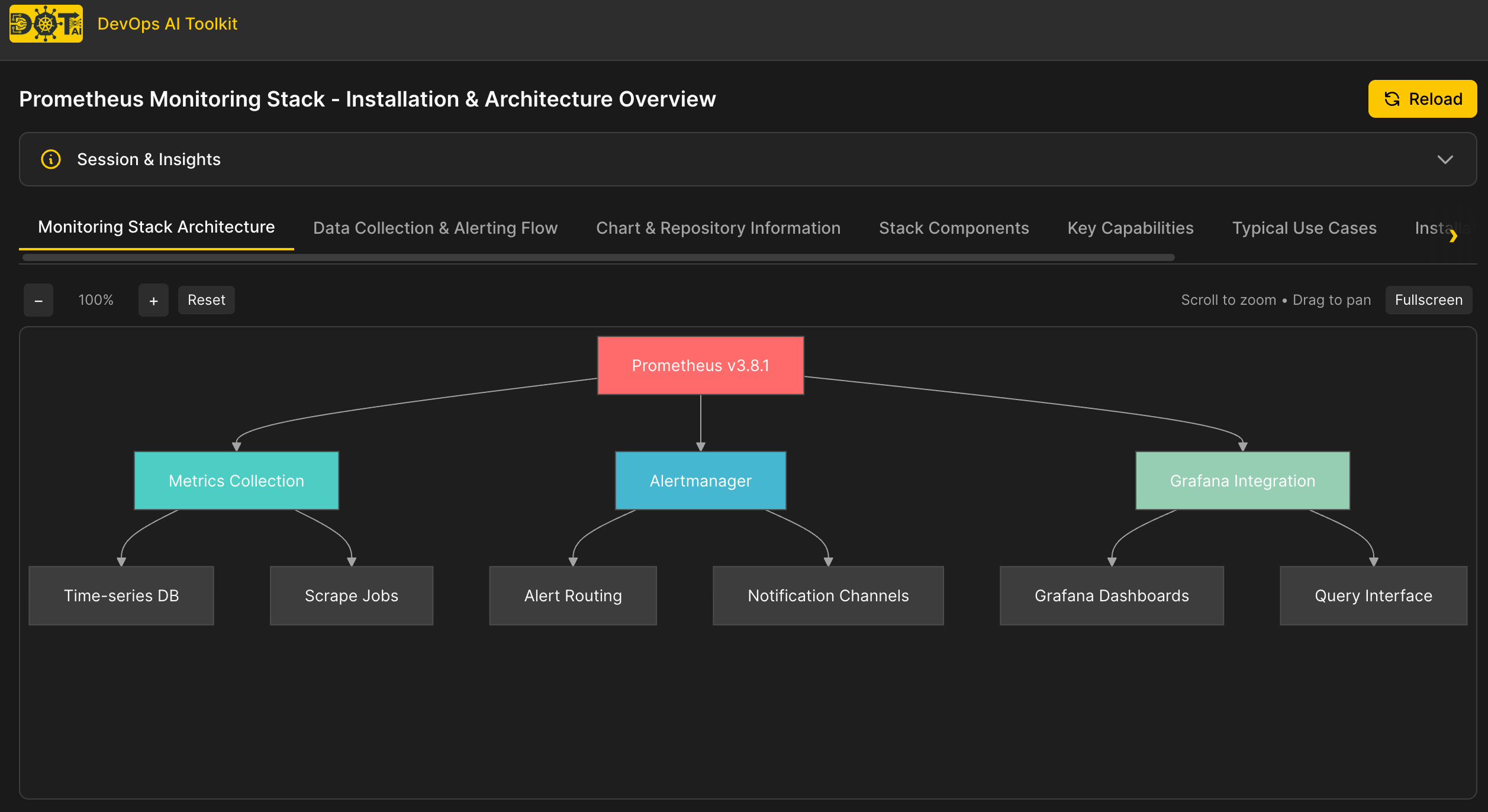
Note: Visualization URLs require additional setup:
- Configure
webUI.baseUrlin your Helm values (see Deployment Guide - Web UI Visualization)- Install the Web UI (see Web UI Documentation)
User: Yes, continue
Agent: [Uses mcp__dot-ai__recommend with stage: 'chooseSolution', solutionId]

I need some details to configure your Prometheus installation:

**Required Configuration:**
- What name should be used for this Prometheus deployment?
- Which namespace should Prometheus be deployed to?
- Should Prometheus use persistent storage for metrics data?
What happened behind the scenes:
- System fetched chart values.yaml and README via Helm CLI
- AI analyzed configuration options and categorized into required/basic/advanced questions
- Cluster context gathered: available namespaces, StorageClasses
- Questions include suggested answers based on chart defaults and cluster state
User: prometheus, monitoring namespace, no persistence
Agent: [Uses mcp__dot-ai__recommend with stage: 'answerQuestion:required', solutionId, answers]

Here are some basic configuration options. Would you like to customize these or use defaults?

**Key settings (defaults shown):**
- Data retention: 15 days
- Scrape interval: 1 minute
- AlertManager: enabled
- kube-state-metrics: enabled (cluster object metrics)
- node-exporter: enabled (node hardware metrics)
- PushGateway: disabled
- Ingress: disabled
User: Enable AlertManager
Agent: [Uses mcp__dot-ai__recommend with stage: 'answerQuestion:basic', solutionId, answers]

Basic configuration set. Now for advanced options.

[Uses mcp__dot-ai__recommend with stage: 'answerQuestion:advanced', solutionId, answers: {}]

Skipping advanced options. Ready to generate the installation.

[Uses mcp__dot-ai__recommend with stage: 'generateManifests', solutionId]

Helm installation ready. Here's the configuration:

**Helm Command:**
helm upgrade --install prometheus prometheus-community/prometheus \
  --namespace monitoring --create-namespace \
  --version 27.49.0 -f values.yaml

**Values (values.yaml):**
server:
  global:
    scrape_interval: 1m
    scrape_timeout: 10s
    evaluation_interval: 1m
  retention: 15d
  persistentVolume:
    enabled: false

alertmanager:
  enabled: true

kube-state-metrics:
  enabled: true

prometheus-node-exporter:
  enabled: true

prometheus-pushgateway:
  enabled: false

📊 **View visualization**: http://localhost:3000/v/sol-...

Ready to install?
What happened behind the scenes:
- AI generated values.yaml containing only non-default values
- System ran
helm upgrade --install --dry-runto validate the installation - Returned helm command and values for user review
User: Yes, deploy
Agent: [Uses mcp__dot-ai__recommend with stage: 'deployManifests', solutionId]

Prometheus deployed successfully to the monitoring namespace.

**Deployed Components:**
- Prometheus Server
- AlertManager
- kube-state-metrics
- node-exporter

**Access Prometheus UI:**
kubectl --namespace monitoring port-forward svc/prometheus-server 9090:80
Then open http://localhost:9090

**Access AlertManager:**
kubectl --namespace monitoring port-forward svc/prometheus-alertmanager 9093:9093
Then open http://localhost:9093

**Internal DNS names:**
- Prometheus: prometheus-server.monitoring.svc.cluster.local:80
- AlertManager: prometheus-alertmanager.monitoring.svc.cluster.local:9093
What happened behind the scenes:
- Helm repository added and
helm upgrade --install --waitexecuted - Helm waited for all pods to become ready before reporting success
- Access instructions provided based on installed components
Post-Deployment Visualization
After deployment, return to the Web UI visualization and click Reload to see updated runtime information including deployed components, pod status, and live cluster state:
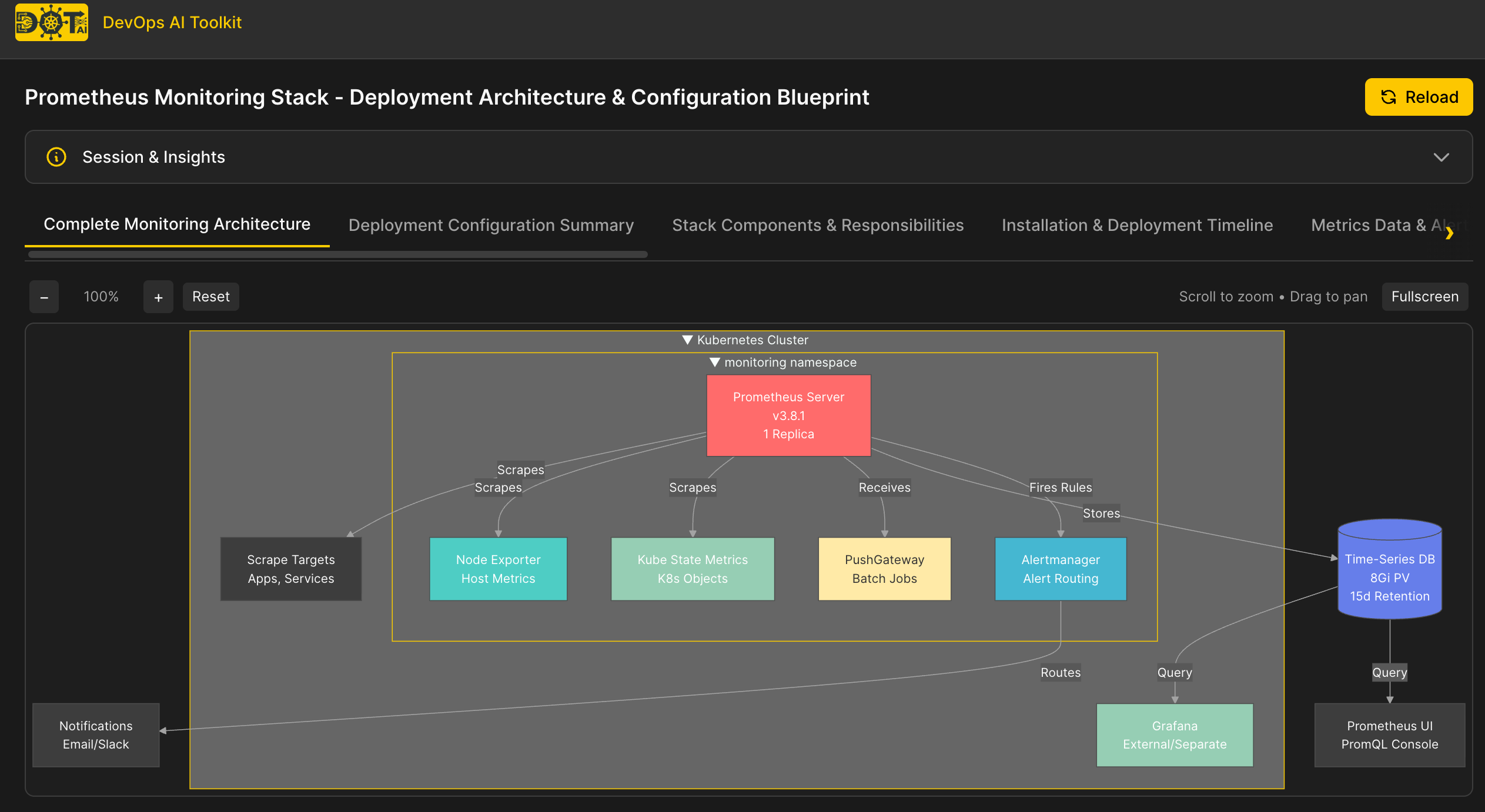
See Also
- Deployment Guide - Server deployment and configuration
- Tools and Features Overview - Browse all available tools and features